Get started with Cowork on Windows
Cowork is a desktop AI coworker for Australian registered migration agents. It works with your own Jira site, your practice mailbox and your own AI key, and every change to a case or email waits for you to approve it. This guide takes you from installing it to approving your first piece of work.
1. What you need
- A Windows PCWindows 10 (version 1809 or later) or Windows 11, x64 or Arm.
- Your own Jira Cloud siteAn Atlassian site for your practice. The Free plan is enough to start. Setting it up needs a Jira admin.
- A mailbox with IMAP and SMTPGmail or Google Workspace with an app password works today. See what works today for Microsoft 365.
- An AI keyYour own OpenAI or Anthropic API key. You pay the provider for what you use.
Cowork is free for now. AI usage is charged separately by your chosen provider. Jira Free plan limits apply.
2. Install from the Microsoft Store
Get it from the Microsoft Store- Open the Microsoft Store on your PC and search for Migration Register Cowork, or use the button above.
- Select Get (it’s free). Windows downloads and installs it.
- Select Open, or find Migration Register Cowork in the Start menu.
Watch it: Install Migration Register Cowork from the Microsoft Store (0:41).
The Store keeps Cowork up to date. Everything the app saves stays in its own folder on your PC.
3. First look: the sample practice
The first time Cowork opens, it offers three ways in: Try the sample practice, Set up my practice, or Book a setup call. Start with the sample.
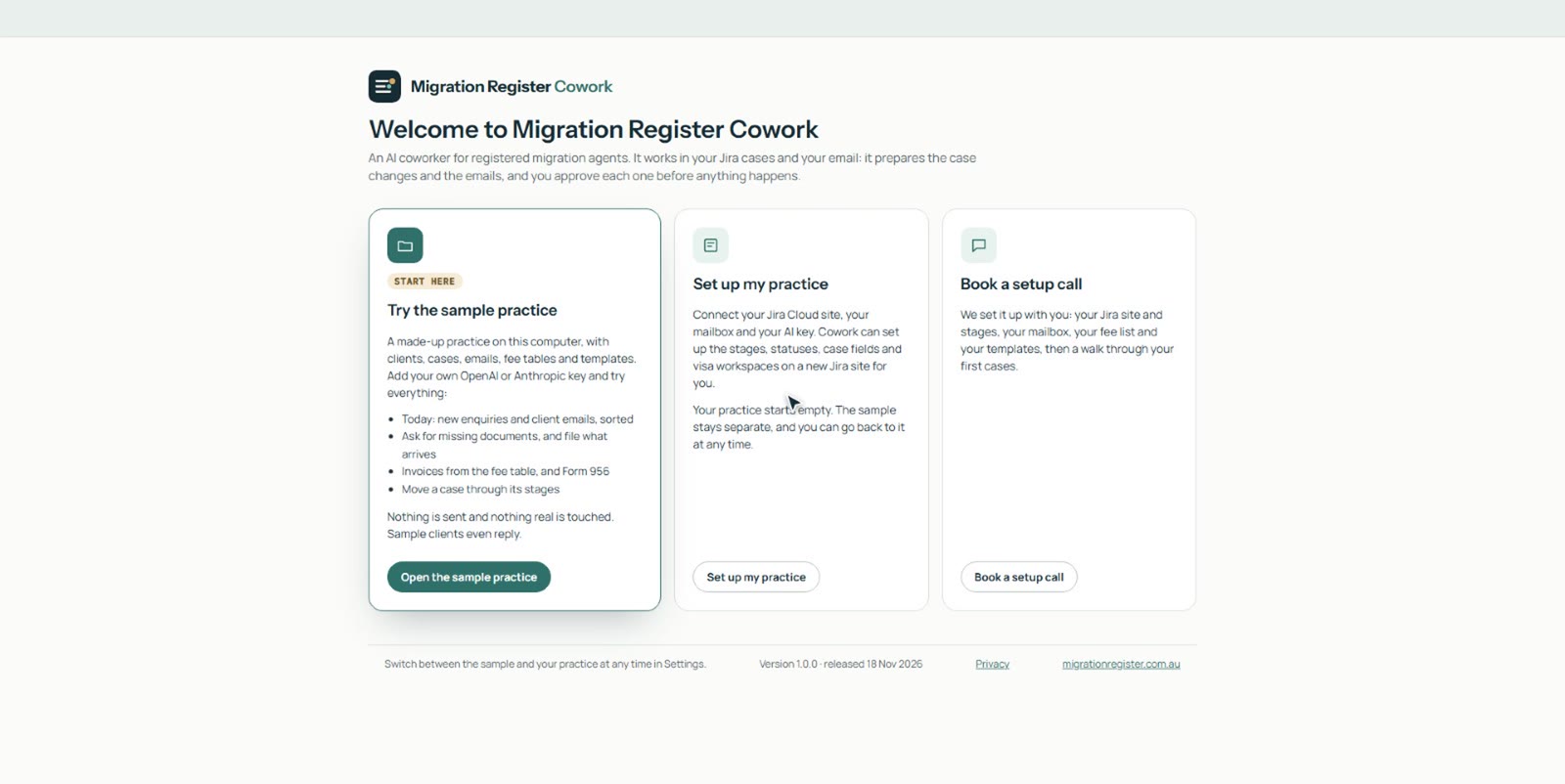
The sample practice is Kestrel Migration Lawyers: made-up clients, cases, emails, fee tables and templates, kept in its own folder on your PC. The gold bar at the top shows you’re in the sample. Its emails are never delivered to anyone, and sample clients reply by themselves. With your AI key added (next step), everything works as it would in your practice:
- Today gathers new enquiries, cases to tidy, checks that are due and cases waiting on you, with suggested priorities.
- Ask what’s missing on a case: Cowork files what arrived and drafts one email asking for the rest.
- Invoices from the fee table, and a draft Form 956, which you open and check right in Cowork.
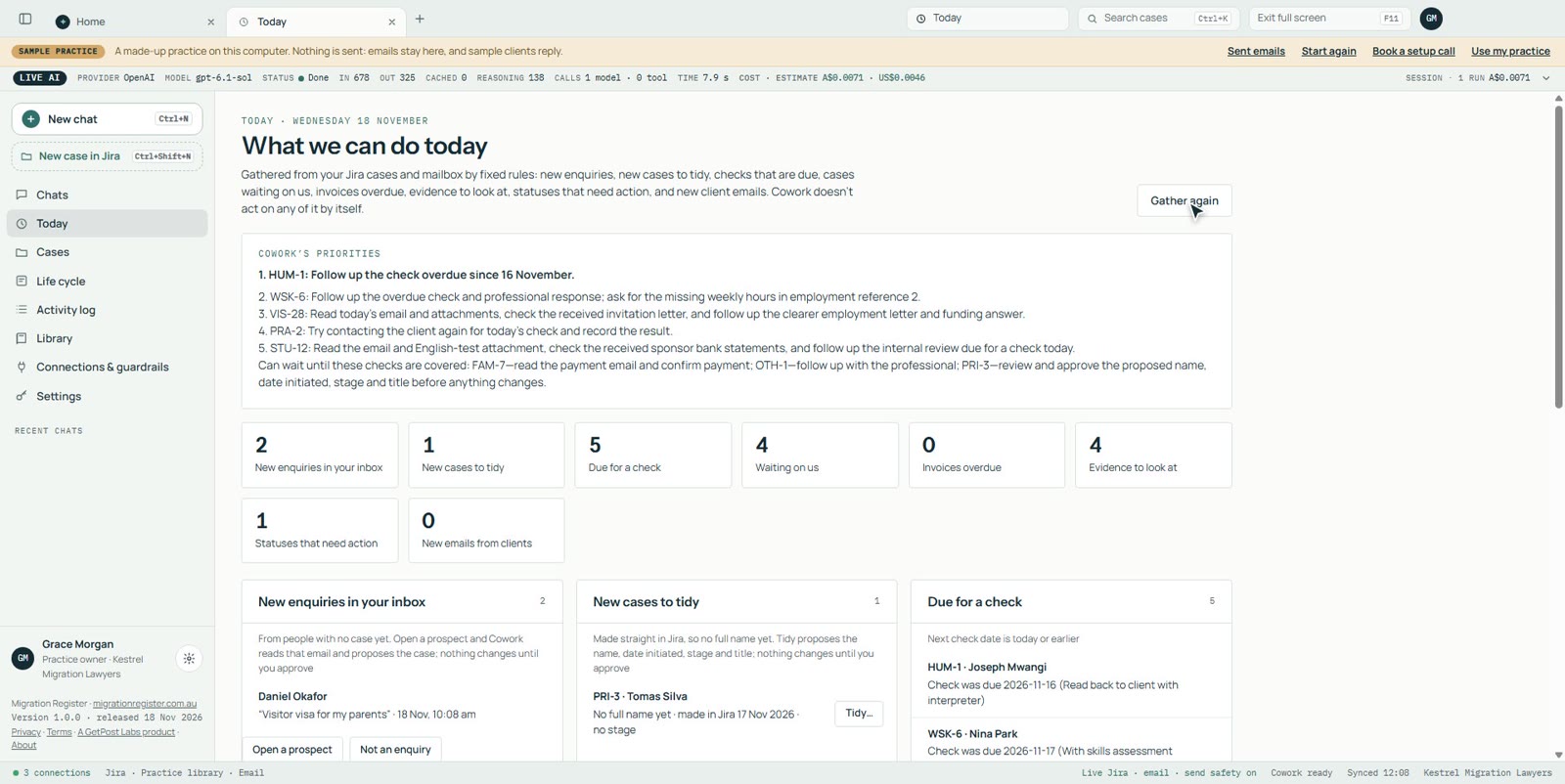
Watch it step by step:
- Open Cowork and choose the sample practice (0:40)
- Add your AI key to the sample practice (0:38)
- Today: see what needs doing first (0:29)
- Turn an email enquiry into a prospect case (0:32)
- Ask a client only for what’s missing (0:55)
- Prepare an invoice, check it, and email it (1:15)
- Prepare a draft Form 956 and check it on screen (0:52)
- Sent emails, starting again, and your own practice (0:45)
4. Add your AI key
- Select Settings in the left-hand menu.
- Under AI model, choose Anthropic or OpenAI.
- Paste your API key. Create one at platform.claude.com or platform.openai.com, and set a monthly spending limit there: Cowork can’t cap what the provider charges.
- Select Test key, then Save.
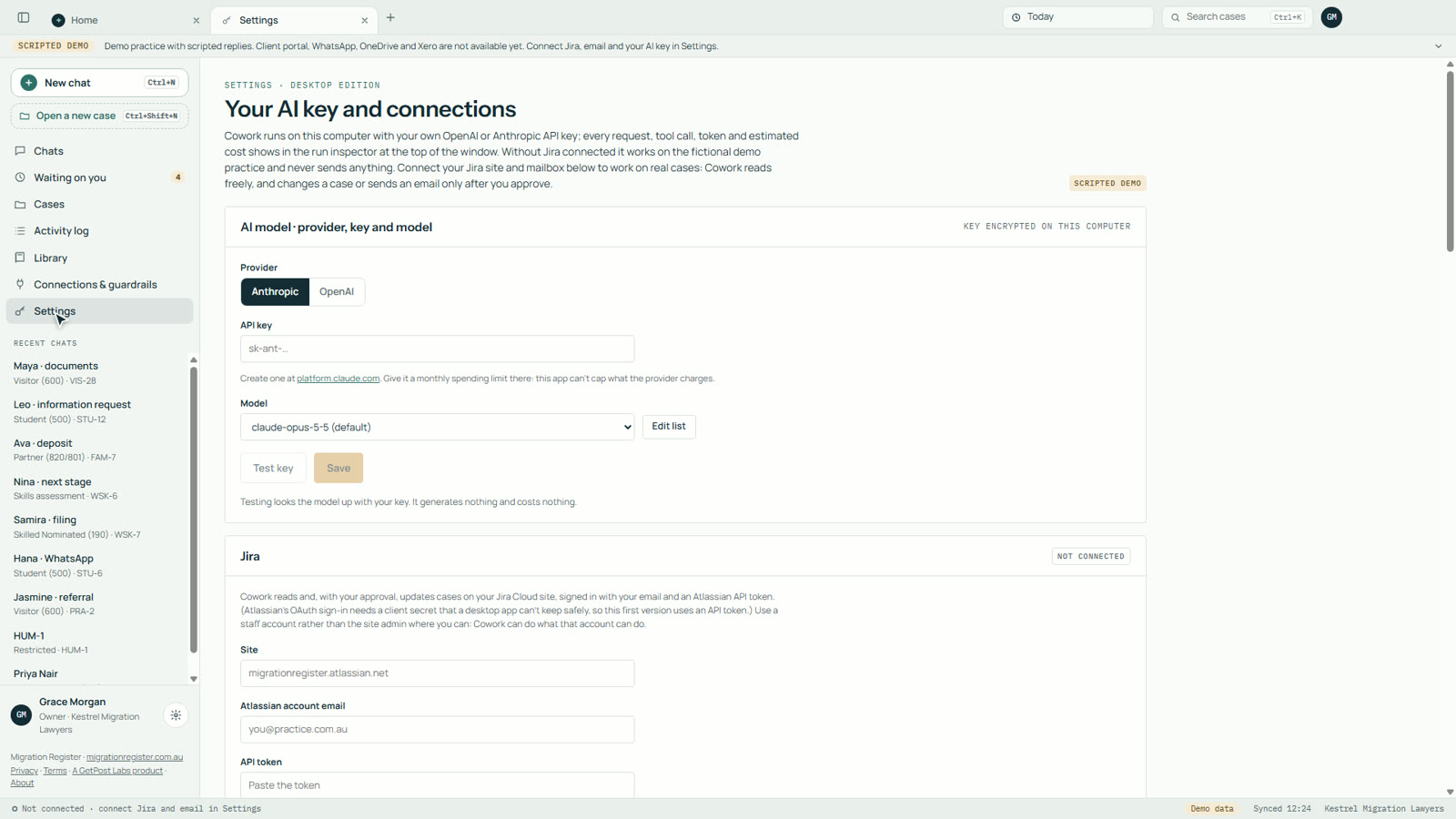
5. Connect Jira
- In Settings → Jira, enter your site (for example yourpractice.atlassian.net) and the email of the Atlassian account Cowork will work as.
- Create an API token at id.atlassian.com → Security → API tokens, signed in as that account. Give it an expiry date, then paste it into API token.
- Select Test, then Save.
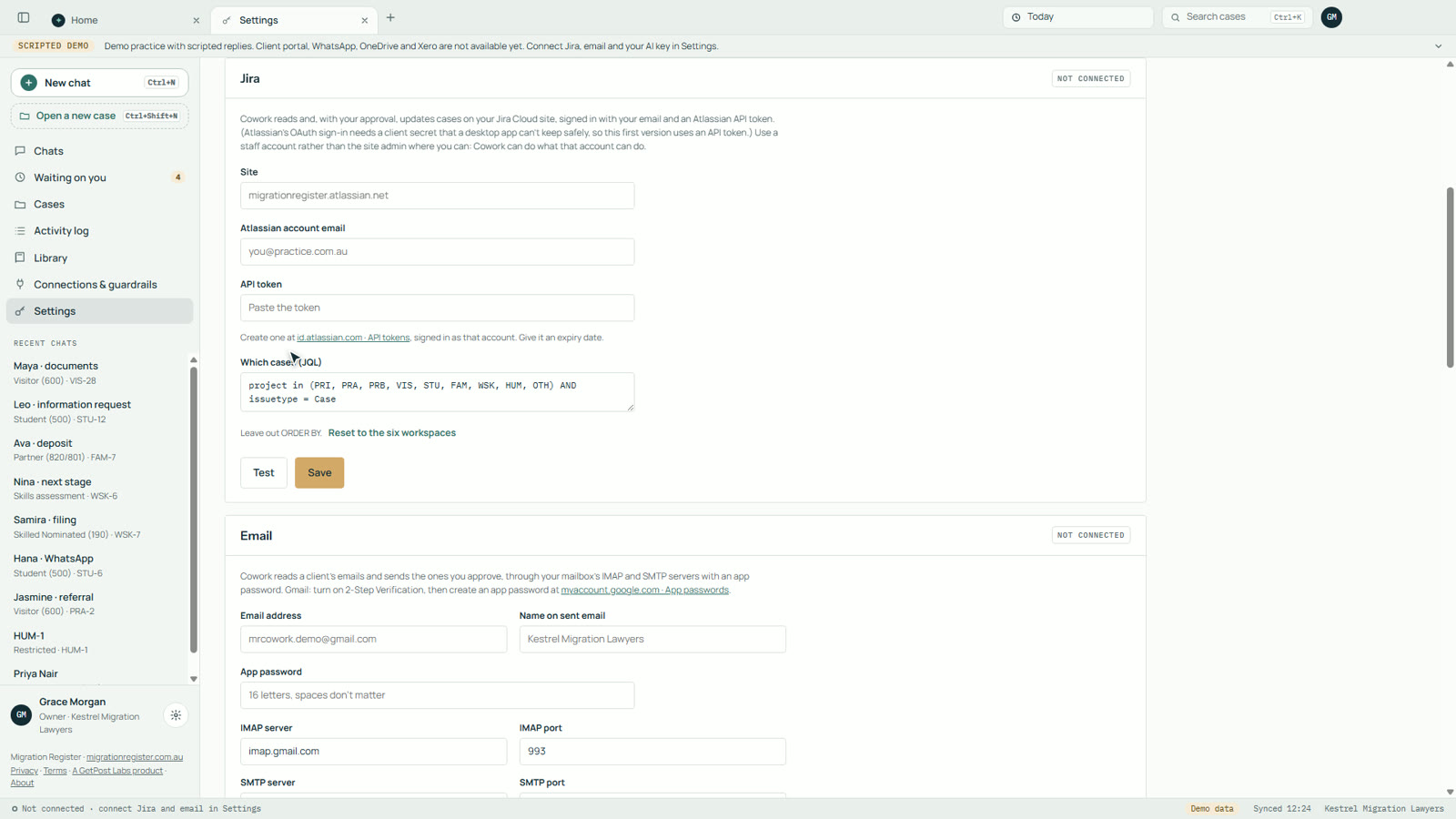
6. Set up Jira for your practice
If your Jira site is new and empty, Cowork can build what it needs: the six stage workspaces, the case statuses, about a dozen case fields, document items and a board for each workspace.
- In Settings → Jira, select Set up Jira for my practice. This needs an account with Jira admin rights.
- Cowork reads your site and shows a plan: what it will create, what it will reuse, and anything you need to do by hand. Nothing is changed yet.
- Select Approve. Cowork builds the structure, then checks it and creates one sample case so you can see it working.
If it stops part-way, run it again: it picks up where it left off without making anything twice.
7. Connect your email
- For Gmail or Google Workspace, turn on 2-Step Verification for the mailbox, then create an app password at myaccount.google.com → App passwords.
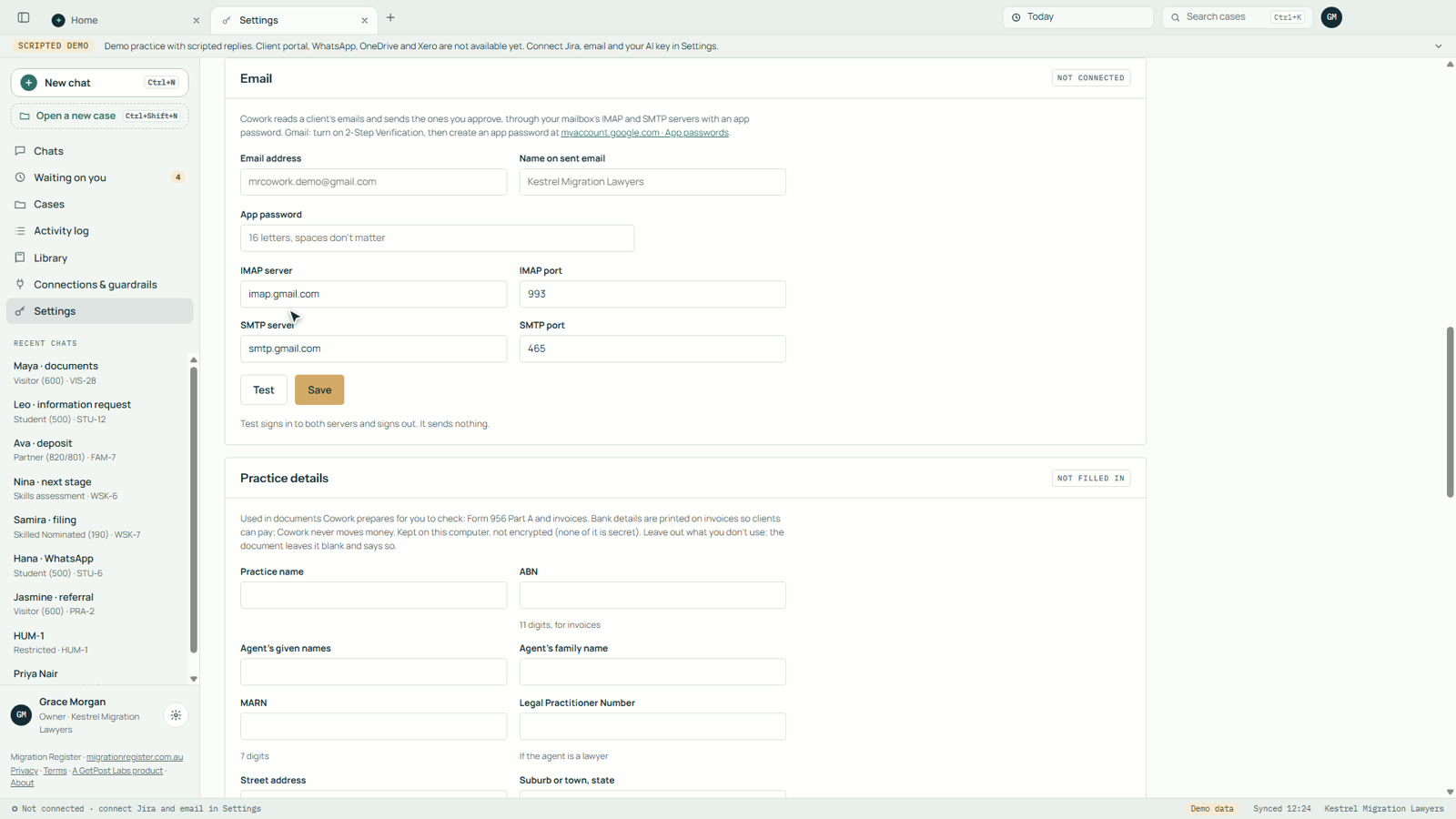
- In Settings → Email, enter the email address, the name to show on sent emails and the app password. The Gmail servers are filled in for you.
- Select Test, then Save. You can add more inboxes under More inboxes.
8. Send safety
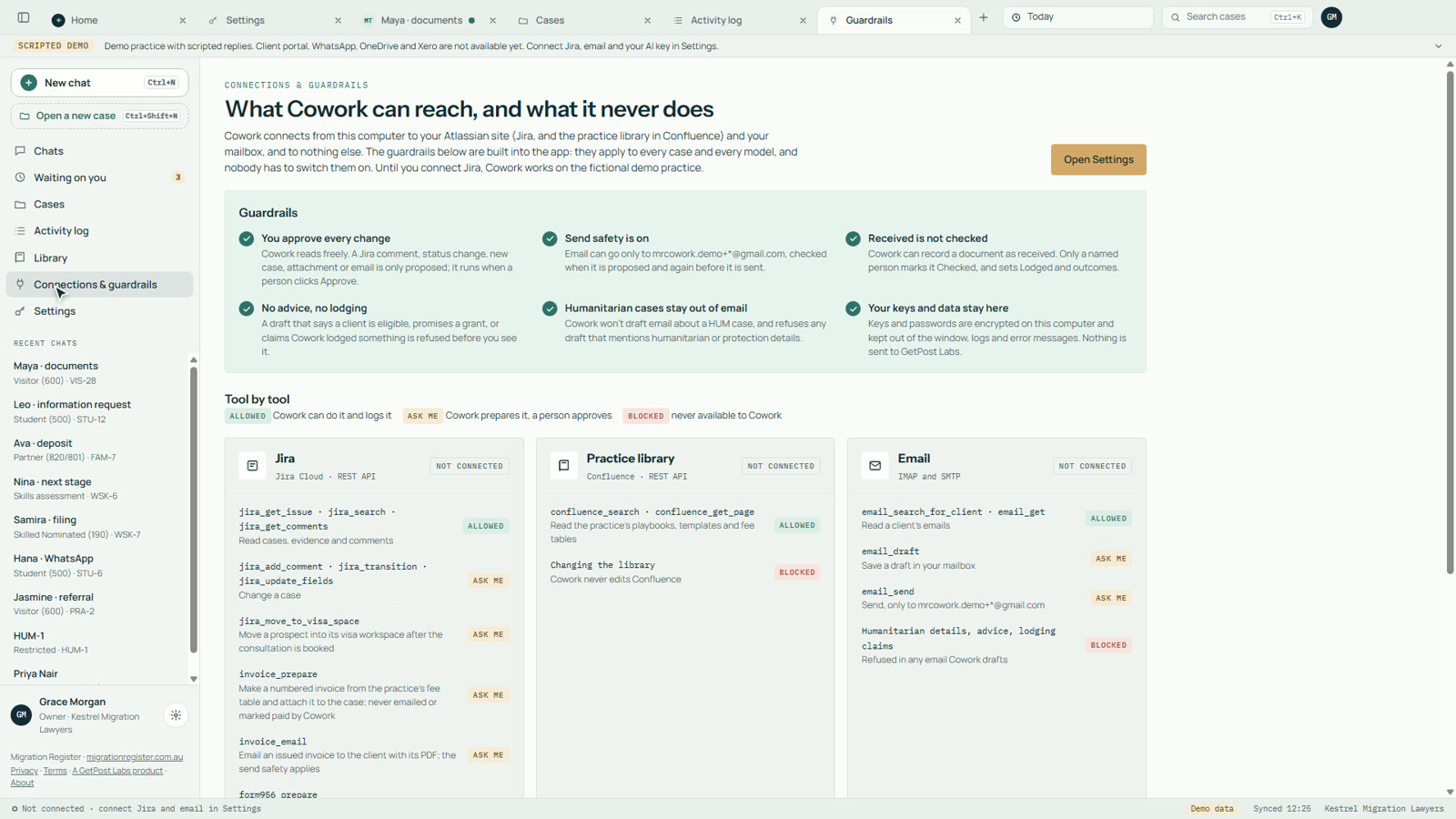
Send safety is on when you start. Cowork sends email only to addresses on your list, and blocks everything else. Keep it on while you try Cowork with test addresses, and turn it off in Settings when you’re ready to email real clients.
9. Your day: Today
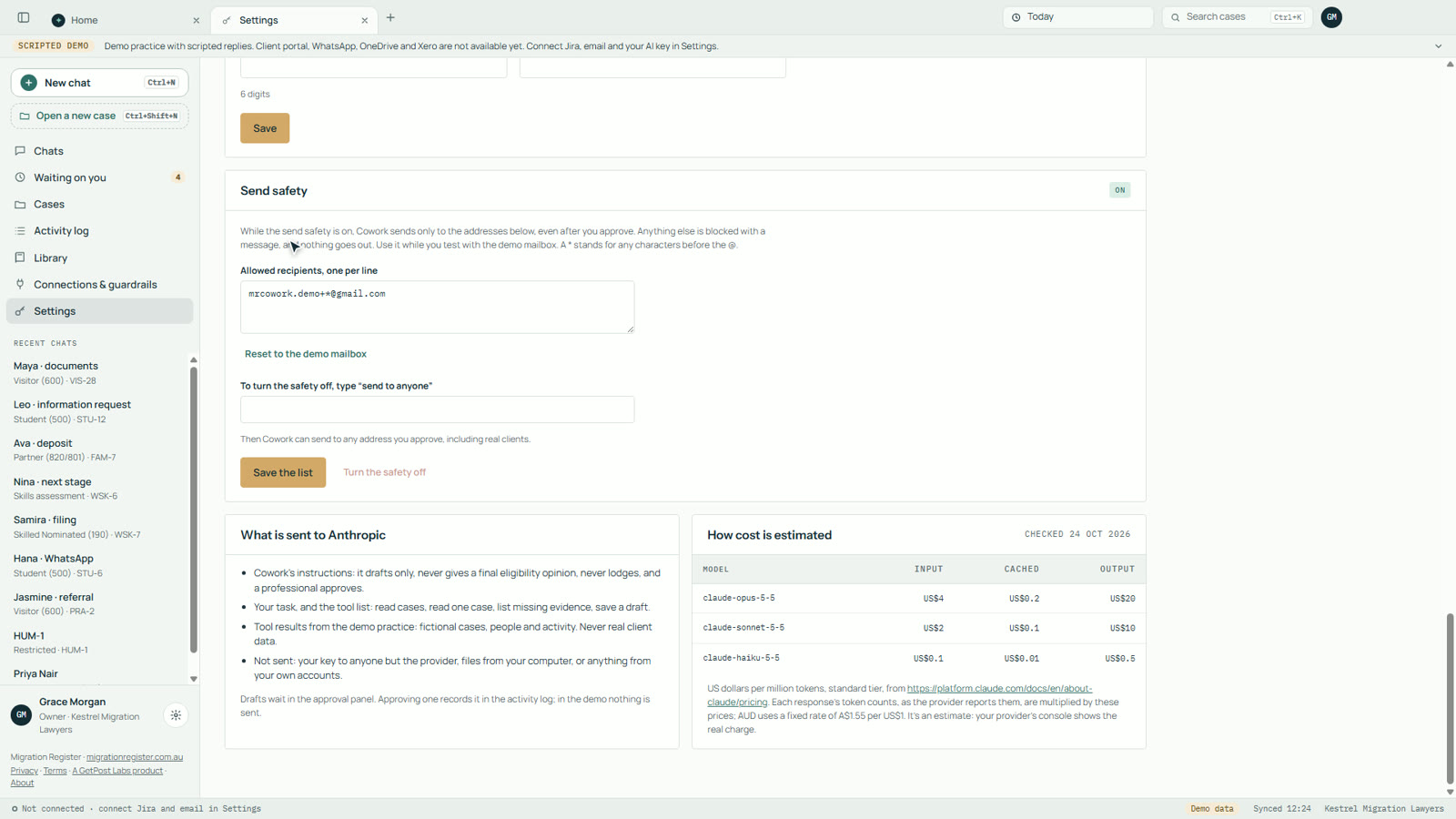
Once Jira and email are connected, select Today. Cowork checks your inbox and your cases and shows what needs attention: new enquiries, new cases to tidy, checks that are due, cases waiting on you, overdue invoices and new emails from clients.
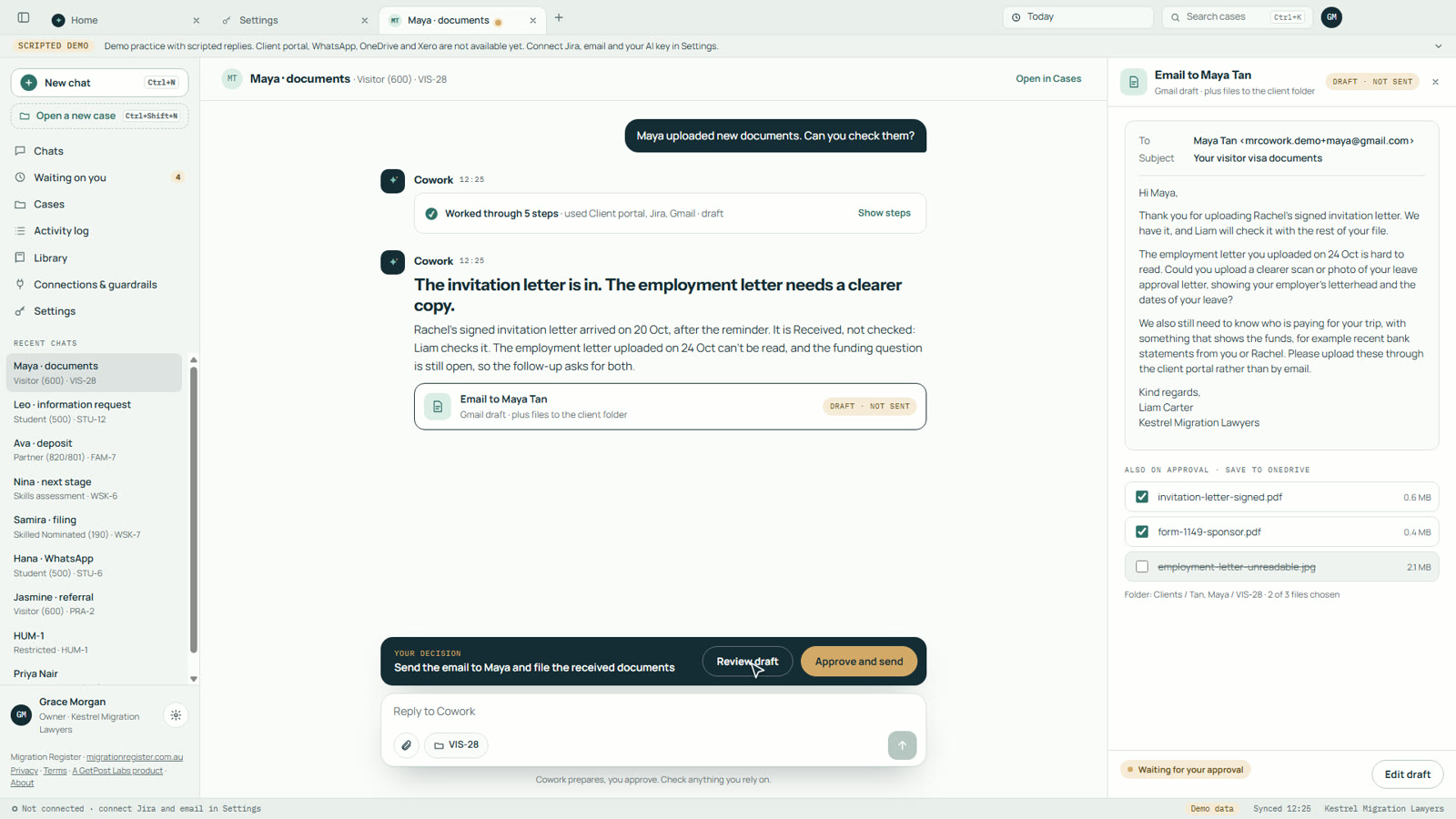
10. Work on a case: ask, review, approve
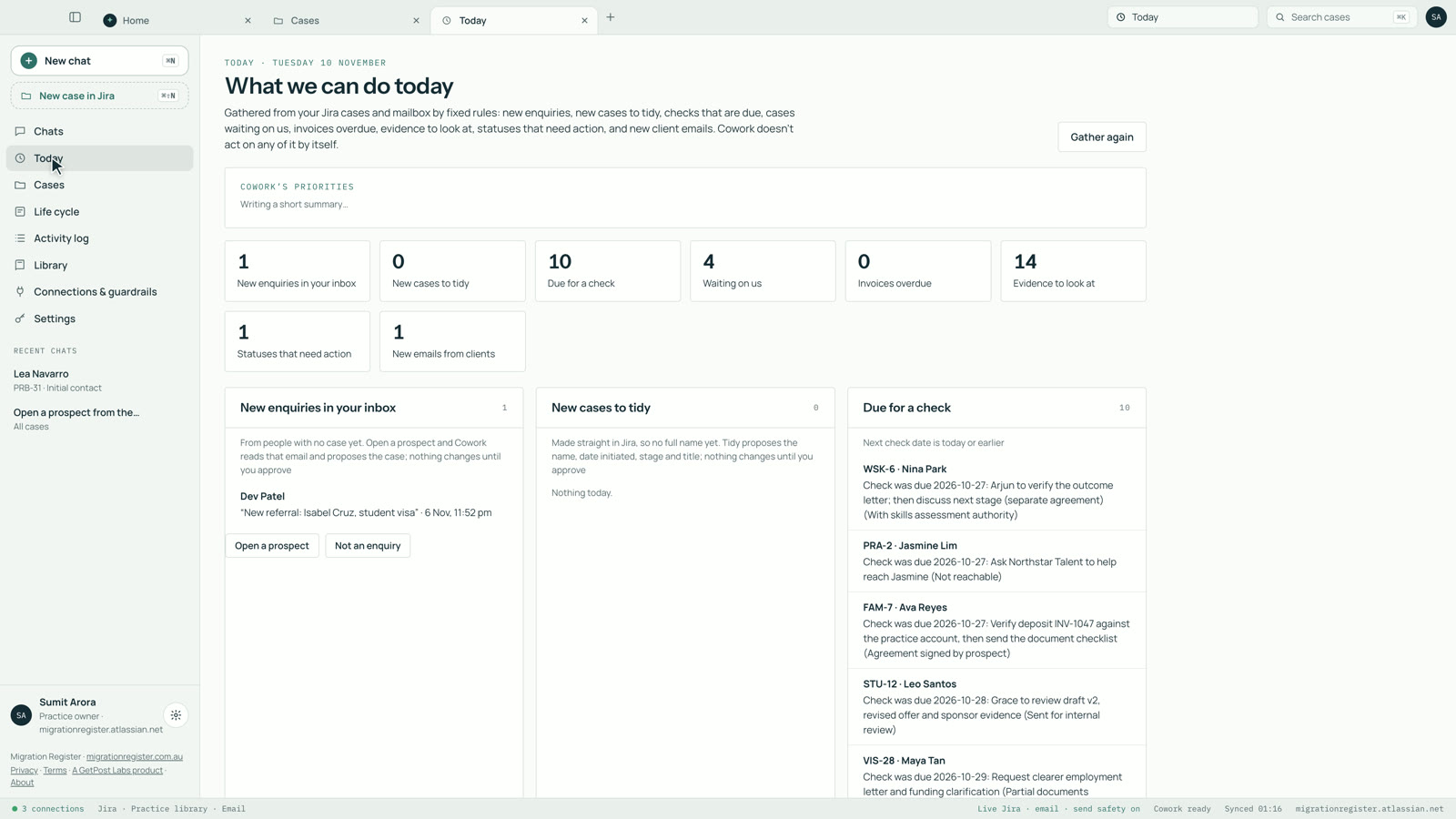
- Open a case, or start from Today, and ask in plain words, for example “Lea has replied. File what she sent and reply to her.”
- Cowork works through the steps and prepares the changes: Jira updates, document items, an email draft.
- Read what it prepared. Review draft opens the full email and every change, in the order they’ll happen.
- Select Approve and send, or ask for changes. Nothing changes in Jira and no email is sent until you approve.
11. Cases, activity log and guardrails
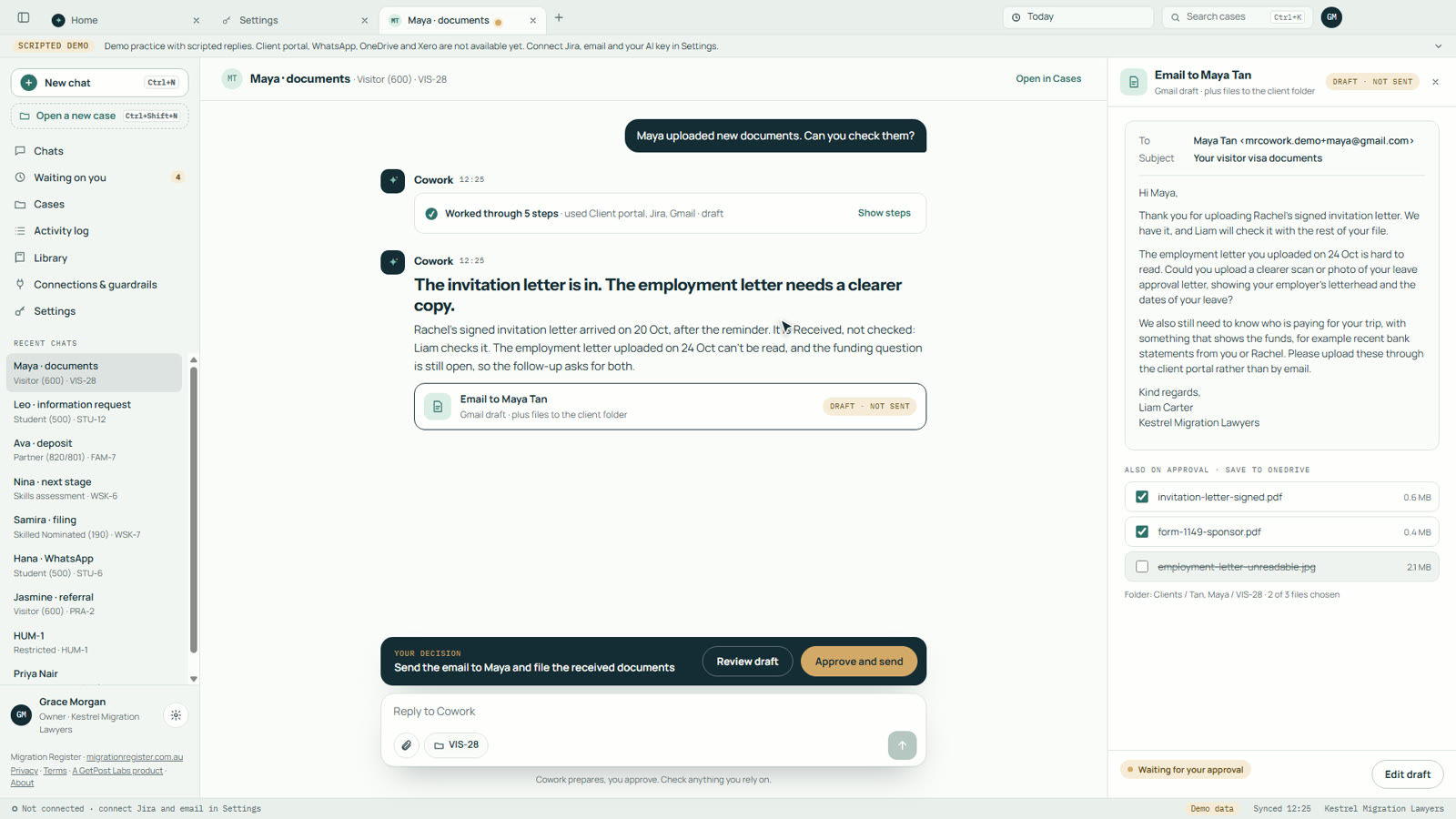
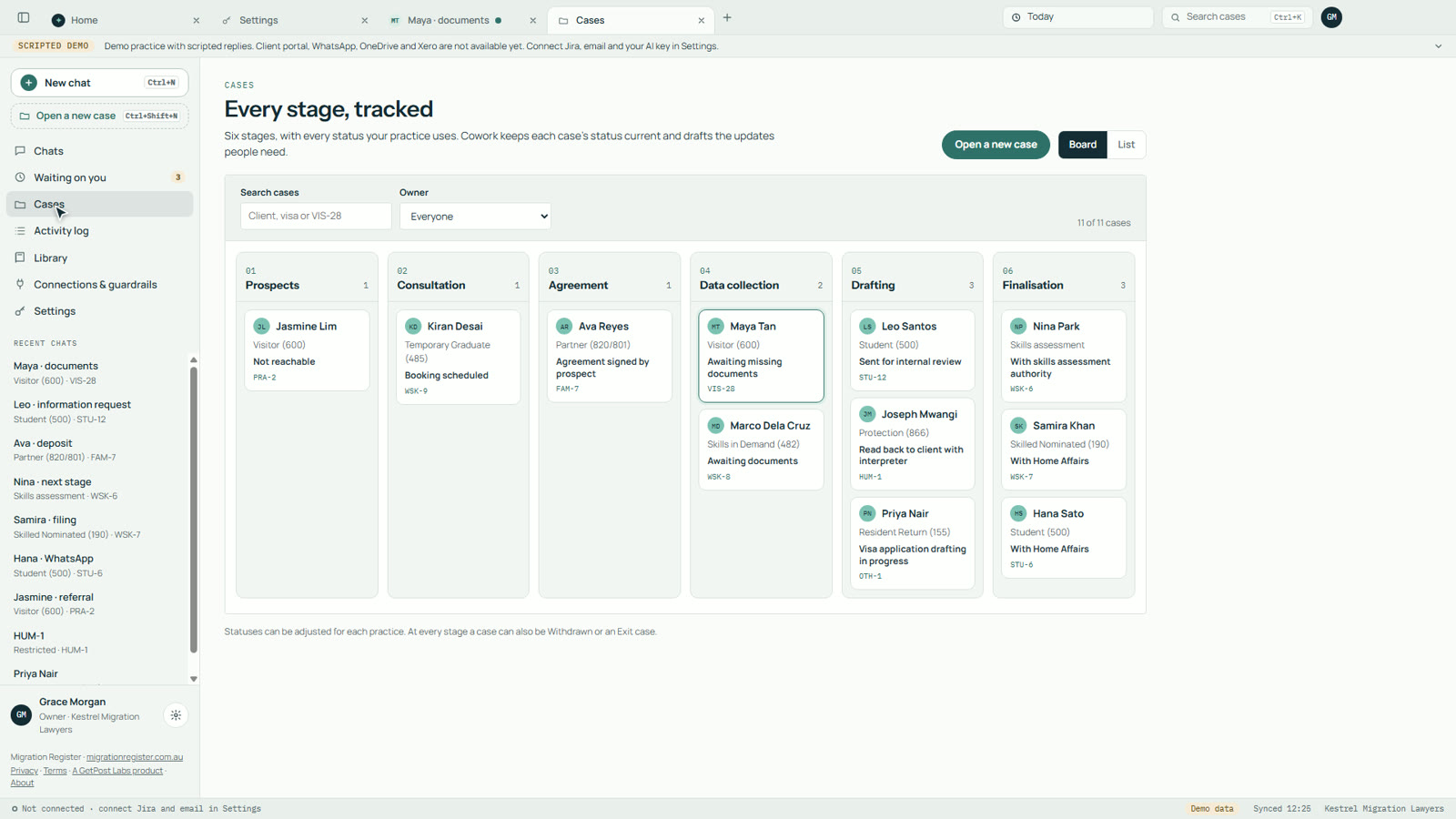
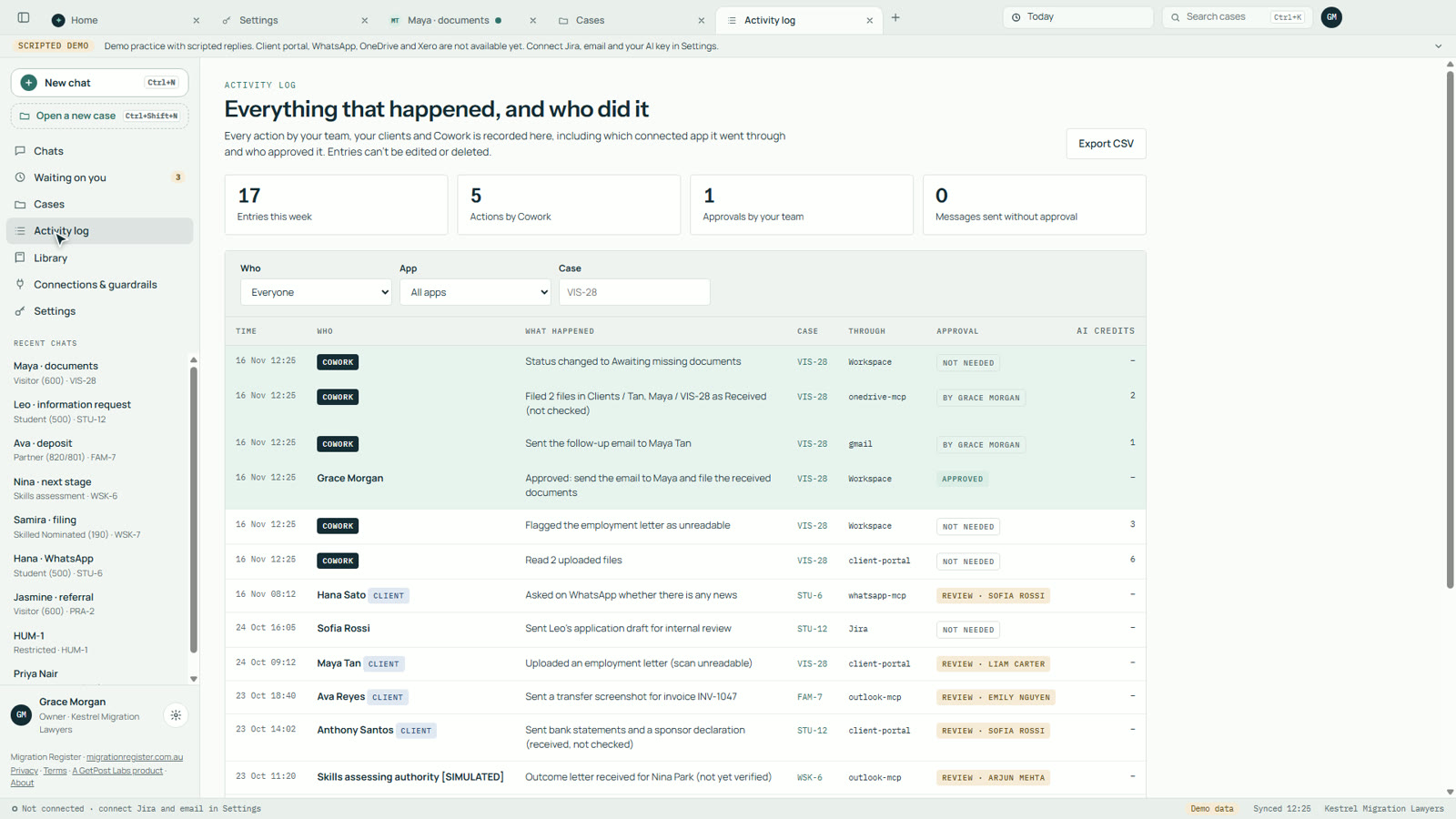
Cases shows every case by stage, from prospect to finalisation. Activity log records every action and who approved it. Connections & guardrails lists what Cowork can reach and what it never does.
12. What works today, and what doesn’t yet
Works today
- Email by IMAP and SMTP (Gmail and Google Workspace), one or more inboxes
- Jira Cloud cases, document items, statuses and comments
- Setting up Jira for your practice
- Reading your practice’s Confluence pages
- Invoices from your fee table, and Form 956 drafts
- OpenAI or Anthropic, with your own key
Not yet
- Microsoft 365 and Outlook mailboxes (they need Microsoft sign-in, which Cowork doesn’t support yet)
- Client portal, WhatsApp, OneDrive, Xero and Teams, shown in the demo story
- Checking the inbox in the background: Cowork checks when you open Today
- A step that records each client’s consent to AI use
- Mac App Store version
Other connections are custom work, scoped on request.
13. Before you use real client information
- Get your clients’ informed consent before their personal information is used with AI. Cowork doesn’t record that consent for you yet.
- Check your AI provider’s terms, data retention and overseas processing against your obligations.
- Review everything Cowork prepares before you approve it. It doesn’t give migration advice and never lodges applications.
- Keep send safety on until you are ready.
The desktop app privacy notice explains what stays on your PC and what goes to the services you connect. GetPost Labs receives nothing from the app.
14. Uninstall
Open Settings → Apps → Installed apps in Windows, find Migration Register Cowork and select Uninstall. Windows removes the app and everything it saved on your PC. Information already in Jira, your mailbox or your AI provider stays there.
15. Videos and help
- Try Cowork on Windows with the sample practice (5 minutes, no sound needed)
- What is Migration Register Cowork? (2 minutes)
- A new visa case: from email to Jira (10 minutes)
- Questions: sumit@getpostlabs.io. Please don’t send client information by email.